Cursor AI: The Beginner-to-Confident Guide to the AI Code Editor

Cursor AI is an AI-powered code editor built as a fork of VS Code. It adds Tab autocomplete that predicts your next edit, a chat that understands your whole codebase, and an agent mode that plans and edits multiple files for you. A free Hobby plan exists; paid plans start at $20/month.
Ask developers which AI coding tool they actually open every day, and Cursor comes up more than almost anything else. Not because of marketing — because it took a familiar editor (VS Code), rebuilt it around AI, and made the everyday loop of writing, editing, and refactoring code noticeably faster. This guide takes you from “what is this thing” to using it with confidence: the core features, Cursor Rules, MCP, the pricing model (which confuses everyone at first), and an honest look at who should pick it over the alternatives.
What Cursor is, exactly
Cursor is an AI-first code editor built as a fork of Visual Studio Code, made by Anysphere. “Fork” means they took VS Code’s open-source code and built on top of it — so the layout, shortcuts, themes, and most extensions you already know work the same. What’s different is that AI isn’t an extension you bolt on; it’s wired into the editor itself.
That design choice matters more than it sounds. Because Cursor is the editor, it can index your entire project, watch what you’re editing, and predict what you’ll do next — context an add-on assistant only gets partially. Three ideas define the experience:
- Tab — autocomplete that predicts your next edit, not just the next line, including multi-line changes and jumps to the next spot that needs the same fix.
- Chat — a conversation panel that can see your code and answer questions about it (“where is auth handled?”, “why does this test fail?”).
- Agent — a mode where you describe an outcome and Cursor plans the work, edits multiple files, and runs commands, with you reviewing each step.
If you’re still mapping the broader landscape of AI coding tools, our roundup of the best AI for coding puts Cursor in context. Here, we go deep on Cursor itself.
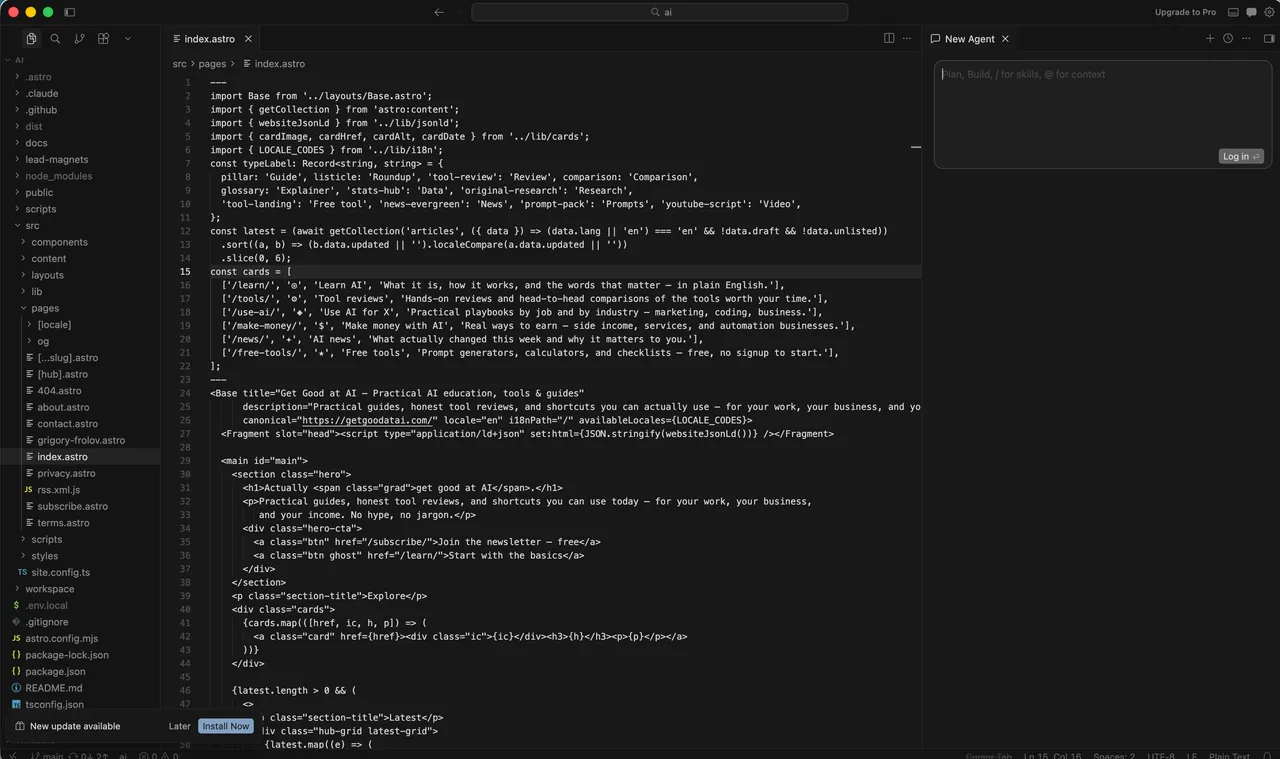
Getting started: install and import your VS Code setup
Setup takes about five minutes, and the migration path from VS Code is the smoothest part of the product:
- Download Cursor from cursor.com for macOS, Windows, or Linux and install it like any app. No credit card needed — the free Hobby plan starts automatically.
- Import your VS Code settings. During onboarding, Cursor offers a one-click import of your extensions, themes, keybindings, and settings. Take it — your editor will feel familiar immediately.
- Sign in with an account (GitHub or Google works) to activate the AI features.
- Open a real project, not an empty folder. Cursor indexes the codebase so the AI can reference it — its biggest advantage shows up only when there’s a codebase to understand.
- Try the three entry points: press Tab to accept a completion, open chat to ask a question about your code, and give the agent one small, well-defined task.
One habit worth forming on day one: start with tasks you can verify. “Add input validation to this form” is a great first agent request. “Rebuild my app” is not.
The core features, and how to actually use them
Tab: autocomplete that predicts edits
Cursor’s Tab model goes beyond finishing your line. It predicts whole edits — rename a variable and it offers to update the other usages; fix a pattern in one place and it suggests jumping to the next place that needs the same change. You accept with Tab, reject by ignoring it. On paid plans Tab completions are unlimited; the free plan caps them. For many developers this alone carries half the value: it’s fast, low-stakes, and always on.
Chat: ask questions, get answers grounded in your code
The chat panel is where you think out loud. Ask it to explain unfamiliar code, locate where something happens, or draft a function — and pull in exactly the context you want with @-references:
- @Files / @Folders — point the AI at specific parts of the project
- @Codebase — let it search your indexed project for relevant code
- @Docs — reference library documentation
- @Web — pull in current information from the internet
- @Git — reference diffs and recent commits
The skill to learn here is scoping: a question with the right two files attached beats a vague question against the whole codebase almost every time.
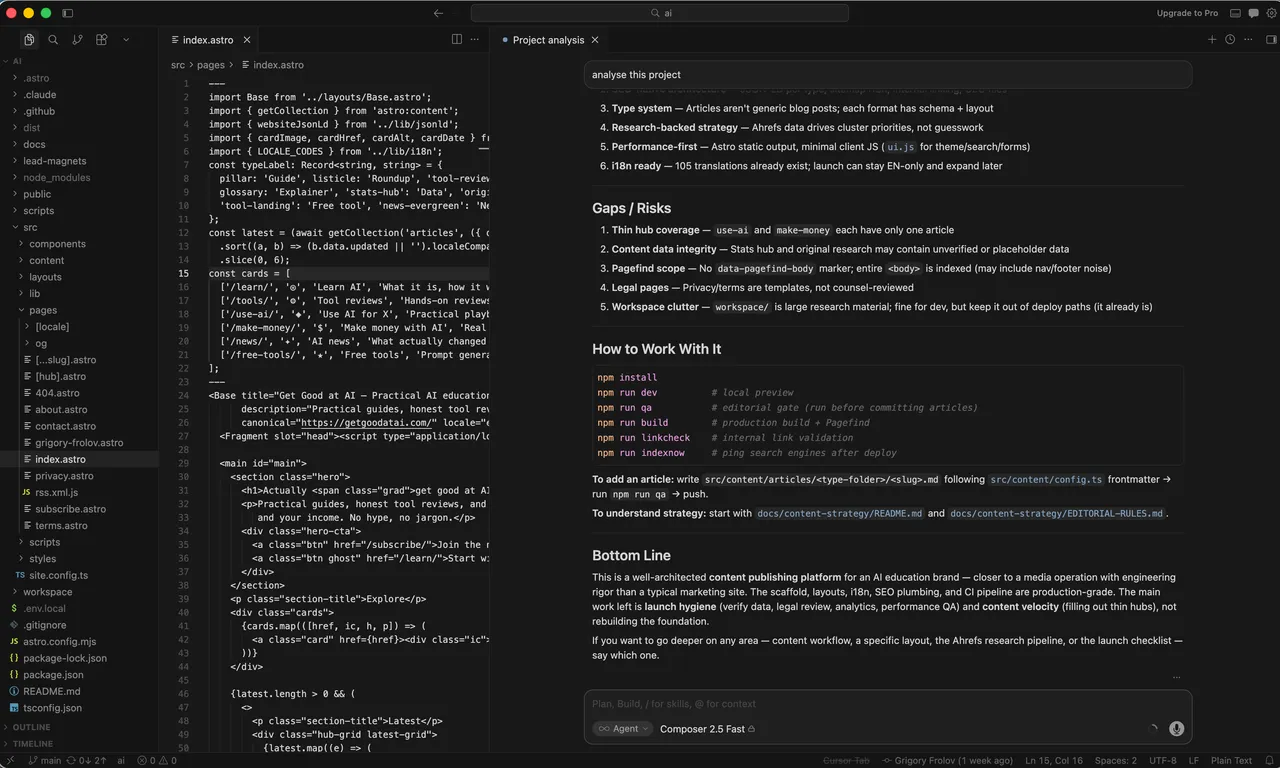
Agent mode: the multi-file workhorse
Agent mode — long known as Composer, a name that now also lives on as Cursor’s in-house model — is the feature that made Cursor famous. You describe a task (“add a dark-mode toggle that persists to localStorage”), and the agent plans the steps, edits the files it needs to, runs terminal commands (with your approval), and reports back. Every change shows up as a diff you can accept or reject file by file.
It works the same agent loop you’ll recognize from agentic AI in general — plan, act, check, repeat — just inside your editor with your code as the workspace. The practical guidance: give it tasks the size of a small ticket, not a project. Review everything. It’s a fast junior developer, not a senior one.
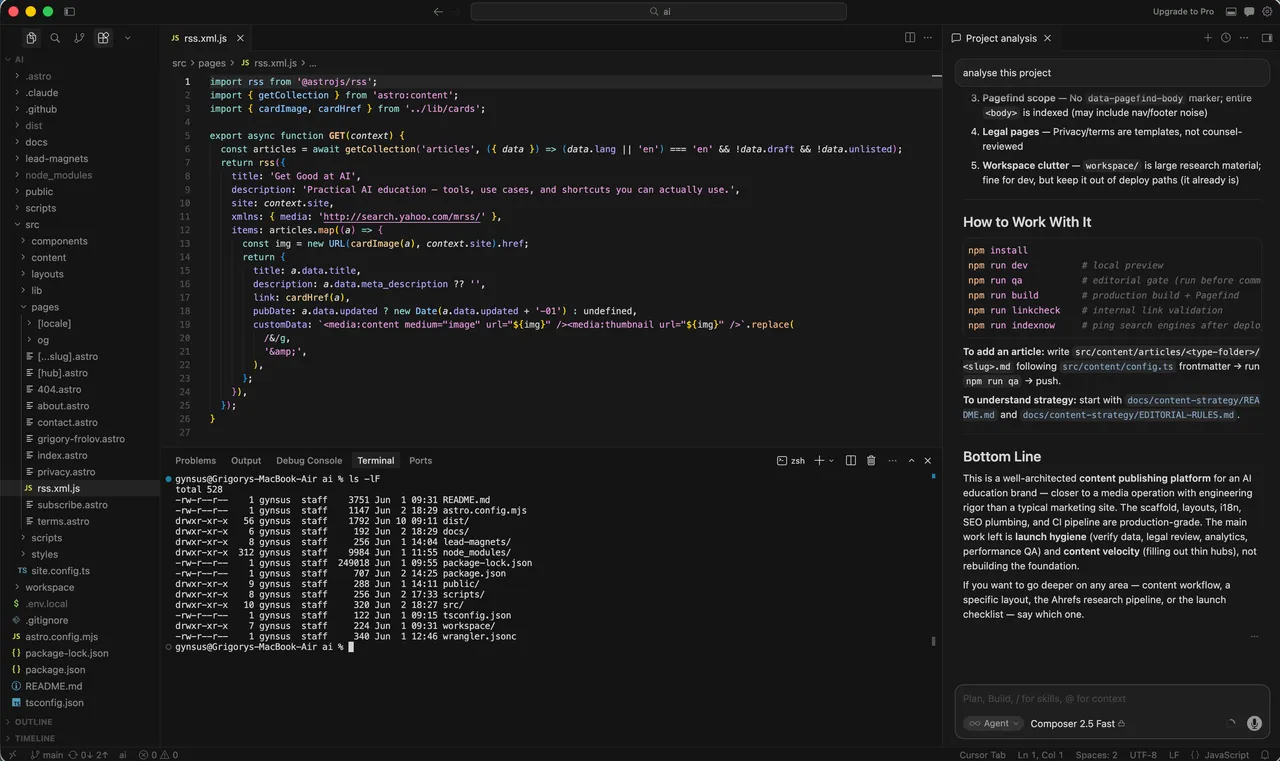
The model picker: choose your brain
Cursor is model-agnostic. From the model dropdown you can pick frontier models from Anthropic (Claude), OpenAI (GPT), and Google (Gemini), or Cursor’s own fast Composer model. There’s also Auto, which selects a model for you based on the task — and, importantly for your bill, comes with significantly more included usage than hand-picking a premium model.
A sensible default: run Auto for everyday work, and switch to a specific top-tier model for genuinely hard problems. If you’re weighing the model providers themselves, our Claude vs ChatGPT comparison covers how the two flagship assistants differ in practice.
Cursor Rules: teach the AI your project once
By default, the AI knows nothing about your conventions — your stack, naming style, folder structure, or the library you migrated away from last year. Cursor Rules fix that. They’re instruction files stored in a .cursor/rules folder (Cursor also reads a plain AGENTS.md file) that get included with your prompts automatically.
A starter rule can be as simple as:
# Project conventions
- Next.js 15 App Router, TypeScript strict mode
- Styling: Tailwind only — no inline styles, no CSS modules
- Data fetching: server components by default; mark client components explicitly
- Tests: Vitest; every new utility function gets a test
- Never edit files in /generated — they are build artifacts
Rules can apply always, attach automatically to matching files (by glob pattern), or be invoked on demand. The payoff is consistency: instead of correcting the same mistakes in every chat, you correct them once. If your agent keeps using the wrong patterns, that’s almost always a missing rule, not a bad model.
Keep rules short and concrete. A focused 20-line rule outperforms a 300-line style bible the model skims past.
MCP: connect Cursor to your tools and data
Cursor supports the Model Context Protocol (MCP) — an open standard that lets AI tools connect to external systems through small servers. In plain terms: MCP gives Cursor’s agent eyes and hands beyond your code. (New to the term? See what MCP is.)
With MCP servers configured (in Cursor’s settings, often a one-click install from a directory of popular servers), the agent can:
- Query your database to check the real schema instead of guessing
- Read and create GitHub issues and pull requests
- Pull designs from Figma to implement against the real spec
- Fetch library docs so it uses current APIs, not training-data memories
- Talk to internal tools your team exposes through a custom server
Start with zero MCP servers — you don’t need them to get value from Cursor. Add one when you notice the agent repeatedly guessing about something a server could just look up. And treat MCP access like permissions, because that’s what it is: only connect servers you trust, with the narrowest scope that does the job.
Pricing: the tiers and the usage model
Cursor’s pricing trips people up because it changed from counting “requests” to a usage-credit model: each paid plan includes a monthly amount of model usage, measured in dollars of compute. Here’s the lineup as of June 2026 (cursor.com/pricing):
| Plan | Price | Included model usage | Best for |
|---|---|---|---|
| Hobby | Free | Limited Tab completions, limited agent requests | Trying Cursor out |
| Pro | $20/month | ~$20/month of usage, unlimited Tab | Most individual developers |
| Pro+ | $60/month | ~$70/month of usage | Daily heavy agent users |
| Ultra | $200/month | ~$400/month of usage | Power users running agents constantly |
| Teams | $40/user/month | Pro-level usage + admin, SSO, Bugbot reviews, analytics | Companies |
| Enterprise | Custom | Pooled usage, audit logs, access controls | Large organizations |
How the usage model actually behaves:
- Auto is cheaper. Usage in Auto mode (and with Cursor’s Composer model) draws from a more generous pool than hand-picking a specific frontier model at API rates.
- Premium models burn faster. A top-tier model can cost many times more per request than an efficient one — the same $20 stretches very differently depending on your picks.
- Running out isn’t a wall. When you exhaust included usage, you can enable on-demand usage billed at API rates, or upgrade a tier.
- Long contexts cost more. Huge files and sprawling conversations consume more tokens. Scoped requests are cheaper and get better answers — a rare free lunch.
Practical advice: start on Hobby, upgrade to Pro the week it starts limiting you, and only consider Pro+ or Ultra after a month of real usage data. Prices and included amounts shift as model costs do, so check the pricing page before committing annually.
Who Cursor is for — and the alternatives
Cursor’s sweet spot is the developer who wants AI deeply integrated but stays hands-on — reviewing diffs, steering the agent, keeping the editor as home base. Here’s the honest landscape:
| Tool | What it is | Strongest at | Pricing starts |
|---|---|---|---|
| Cursor | AI-first editor (VS Code fork) | Multi-file edits with visual review; Tab | Free / $20/mo |
| Claude Code | Terminal-based coding agent | Autonomous multi-step tasks; scripting into workflows | Included with Claude plans |
| GitHub Copilot | Assistant inside your existing editor | Inline completions; GitHub ecosystem | Free tier / $10/mo |
| Windsurf | Rival AI-first editor | Similar agent flows; aggressive pricing | Free / paid tiers |
| JetBrains AI | Assistant inside JetBrains IDEs | Staying in IntelliJ/PyCharm workflows | Bundled options |
The decision usually narrows to two questions. First, editor or terminal? If you want to watch and steer, Cursor; if you’d rather delegate a whole task and review the result, a terminal agent like Claude Code fits better — our Claude Code vs Cursor comparison goes deep on this, and if you want to try the terminal side, here’s how to install Claude Code in a few minutes. (Plenty of developers run both: Cursor for interactive work, Claude Code for batch tasks.) Second, how much do you use AI? If you only want occasional completions, Copilot inside your current editor is enough; Cursor earns its switch when AI becomes part of every working hour.
Common mistakes (and how to skip them)
The gap between “tried Cursor” and “uses Cursor well” is mostly avoiding these:
- Giving the agent tasks that are too big. “Build the whole feature” produces a sprawling, half-right diff. Slice work into ticket-sized requests and chain them.
- Accepting diffs without reading them. The agent is confident when wrong. Unreviewed AI code is how subtle bugs and security holes ship.
- Skipping Cursor Rules. If you’re correcting the same style mistakes in every session, you’re doing the rule file’s job by hand.
- Always picking the most expensive model. Auto handles most everyday work; save premium models for problems that resist a first attempt.
- Working without version control. Commit before letting an agent loose. A messy agent run should cost you a
git checkout, not an afternoon. - Treating chat as a search engine. The leverage is context — attach the right files with @-references instead of asking generic questions you could Google.
- Letting one conversation run forever. Long sessions bloat context, raise costs, and degrade answers. New task, new chat.
Tips for getting more out of Cursor
Once the basics feel comfortable, these habits compound:
- Write rules as you go. Every time you correct the agent twice for the same thing, capture it as a rule.
- Ask for a plan first. On anything non-trivial, ask the agent to outline its approach before editing. Cheap to correct a plan; expensive to untangle a diff.
- Use checkpoints. Cursor lets you restore to a point before an agent run — use it freely instead of nursing a bad run forward.
- Point it at errors verbatim. Paste the actual stack trace or failing test output. Real errors beat your summary of them.
- Let it write the tests, then make tests the contract. “Make these tests pass without modifying them” is one of the most reliable agent instructions there is.
- Watch your usage dashboard for the first month. You’ll learn which models and habits drain your included credit, then optimize with data instead of guesses.
The bottom line
Cursor earns its place as the default recommendation for an AI-integrated editor: familiar VS Code bones, the strongest Tab autocomplete around, a genuinely useful agent mode, and the flexibility to pick your model. Its real cost is learning to work with it well — scoped tasks, rules, reviewed diffs — and a usage model you should watch for your first month. It won’t replace your judgment, and it isn’t trying to. It removes the typing between your judgment and working code.
Start free, give it one small real task on a real project, and you’ll know within a week whether it sticks.
Comparing your options? See Claude Code vs Cursor and the rest of our tools hub. New hands-on guides land regularly — subscribe to get the next one in your inbox.
Frequently asked questions
What is Cursor AI in simple terms?
Cursor is a code editor with AI built into every part of it. It looks and works like VS Code (it's a fork of it), but adds smart autocomplete, a chat that knows your project, and an agent that can write and edit code across many files from a plain-English request.
Is Cursor AI free?
There is a free Hobby plan with limited Tab completions and limited agent requests — enough to try it. For daily work most people end up on Pro at $20/month, which includes a monthly pool of model usage and unlimited Tab completions (cursor.com/pricing, 2026).
Is Cursor the same as VS Code?
Cursor is a fork of VS Code, so the interface, keybindings, themes, and most extensions carry over. On first launch it offers to import your VS Code settings in one click. The difference is the AI layer: Tab, chat, agent mode, and codebase indexing are native, not bolted on.
Which AI models does Cursor use?
Cursor is model-agnostic. The model picker includes frontier models from Anthropic (Claude), OpenAI (GPT), and Google (Gemini), plus Cursor's own fast Composer model. An Auto mode picks a model for you and comes with more generous included usage than picking a specific model.
What is Cursor's agent mode?
Agent mode (long known as Composer) is Cursor working like a junior developer: you describe an outcome, and it plans the steps, edits multiple files, runs terminal commands with your approval, and checks the results. You review the diff before anything is final.
What are Cursor Rules?
Cursor Rules are instruction files (in a .cursor/rules folder, or an AGENTS.md file) that tell the AI how your project works: stack, conventions, things to avoid. They're included with prompts automatically, so you stop repeating yourself and the AI's output matches your codebase style.
Does Cursor support MCP?
Yes. Cursor supports the Model Context Protocol (MCP), an open standard for connecting AI tools to outside data and services. With MCP servers configured, the agent can query your database, read docs, talk to GitHub or Figma, and more — instead of guessing.
How does Cursor's usage-based pricing work?
Each paid plan includes a monthly amount of model usage — about $20 worth on Pro, $70 on Pro+, and $400 on Ultra. Usage in Auto mode costs less than hand-picking premium models. If you run out, you can add on-demand usage billed at API rates or upgrade (cursor.com, 2026).
Is Cursor better than GitHub Copilot?
They overlap but aim at different depths. Copilot is an assistant inside your existing editor, strongest at inline completions. Cursor is a whole editor designed around AI, with stronger multi-file agent workflows and codebase context. Heavy AI users tend to prefer Cursor; light users may not need the switch.
Cursor vs Claude Code — which should I pick?
Cursor is a visual editor — best if you want to see diffs, stay hands-on, and review as you go. Claude Code lives in the terminal and leans more autonomous. Many developers use both. Our side-by-side guide at /claude-code-vs-cursor/ breaks down when each wins.
Can beginners use Cursor without knowing how to code?
You can build small things by describing them, and it's a genuinely good way to learn. But you'll hit walls fast if you can't read what the AI wrote — debugging, security, and deployment still need judgment. Treat Cursor as a learning accelerator, not a replacement for fundamentals.
Does Cursor send my code to the cloud?
AI features work by sending relevant code to model providers, so yes — that's how it functions. Cursor offers a Privacy Mode where your code isn't stored or used for training, and team plans can enforce it organization-wide. Check current terms on cursor.com if you work on sensitive code.
Keep reading



Get good at AI — one practical email a week.
Tools, use cases, and shortcuts you can actually apply. No hype.