How to Install Claude Code (Mac, Windows, Linux)
To install Claude Code, run `curl -fsSL https://claude.ai/install.sh | bash` on macOS, Linux, or WSL, or `irm https://claude.ai/install.ps1 | iex` in Windows PowerShell. Then open a terminal in your project, type `claude`, and log in with a Claude Pro, Max, Team, or Console account.
Claude Code is Anthropic’s AI coding agent that lives in your terminal: you describe what you want, and it reads your codebase, edits files, runs commands, and works through tasks with you. Installing it takes about two minutes on any major OS. This guide walks through the exact official commands for macOS, Windows, and Linux, the first-run login, how to verify and update it, and how to fix the install errors people actually hit.
Before you install: what you need
The good news first: the recommended installer has no dependencies. You do not need Node.js, Python, or anything else pre-installed — Claude Code ships as a native binary. Here’s the checklist, per Anthropic’s setup docs:
- Operating system: macOS 13.0+, Windows 10 (1809+) or Windows Server 2019+, Ubuntu 20.04+/Debian 10+, or Alpine 3.19+
- Hardware: 4 GB+ RAM, x64 or ARM64 processor
- Network: an internet connection (it talks to Claude’s API)
- Account: a Claude Pro, Max, Team, or Enterprise plan, or a Console (API) account — the free Claude.ai plan does not include Claude Code
- Node.js 18+: only if you choose the optional npm install method
If you’ve never used a terminal, that’s the only real learning curve here — the install itself is one pasted line.
Install Claude Code on macOS and Linux
Open Terminal and run the official one-liner:
curl -fsSL https://claude.ai/install.sh | bashThat’s it. The script downloads the binary to ~/.local/bin/claude and sets it up. The same command works inside WSL on Windows.
Prefer Homebrew on a Mac? That works too:
brew install --cask claude-codeOne difference worth knowing: the native install auto-updates in the background, while Homebrew installs don’t — you’d run brew upgrade claude-code yourself. If you want the lowest-maintenance setup, use the curl installer.
On Debian/Ubuntu, Fedora/RHEL, and Alpine, Anthropic also publishes signed apt, dnf, and apk repositories if you’d rather manage Claude Code through your system package manager — see the official setup page for those repo configs.
Install Claude Code on Windows
Claude Code runs natively on Windows — no WSL required. In PowerShell:
irm https://claude.ai/install.ps1 | iexOr with WinGet:
winget install Anthropic.ClaudeCodeIf you’re in classic CMD instead of PowerShell, use:
curl -fsSL https://claude.ai/install.cmd -o install.cmd && install.cmd && del install.cmdA common stumble: running the PowerShell command in CMD (you’ll see 'irm' is not recognized) or the CMD command in PowerShell (The token '&&' is not a valid statement separator). Check your prompt — PS C:\ means PowerShell, plain C:\ means CMD.
Two Windows-specific notes:
- Git for Windows is recommended (not required). With it installed, Claude Code can use Git Bash to run shell commands; without it, it falls back to PowerShell.
- WSL 2 is a valid alternative. If your projects live in a Linux toolchain or you want sandboxed command execution, open your WSL distribution and run the Linux
curlinstaller there instead. Install and launchclaudeinside the WSL terminal, not from PowerShell.
The optional npm install
If you already live in the Node ecosystem, you can install Claude Code as a global npm package (Node.js 18+ required):
npm install -g @anthropic-ai/claude-codeUnder the hood this delivers the same native binary as the standalone installer. One firm rule from Anthropic: never run this with sudo — it causes permission problems and is a security risk. If npm throws permission errors, fix your npm prefix instead (more on that below).
Install methods at a glance
| OS / setup | Recommended command | Auto-updates? |
|---|---|---|
| macOS / Linux / WSL | curl -fsSL https://claude.ai/install.sh | bash | Yes |
| Windows (PowerShell) | irm https://claude.ai/install.ps1 | iex | Yes |
| macOS (Homebrew) | brew install --cask claude-code | No — brew upgrade |
| Windows (WinGet) | winget install Anthropic.ClaudeCode | No — winget upgrade |
| Any, via npm (Node 18+) | npm install -g @anthropic-ai/claude-code | Partial — update via npm |
| Debian / Fedora / Alpine | signed apt / dnf / apk repos | No — system updates |
First run: login and authentication
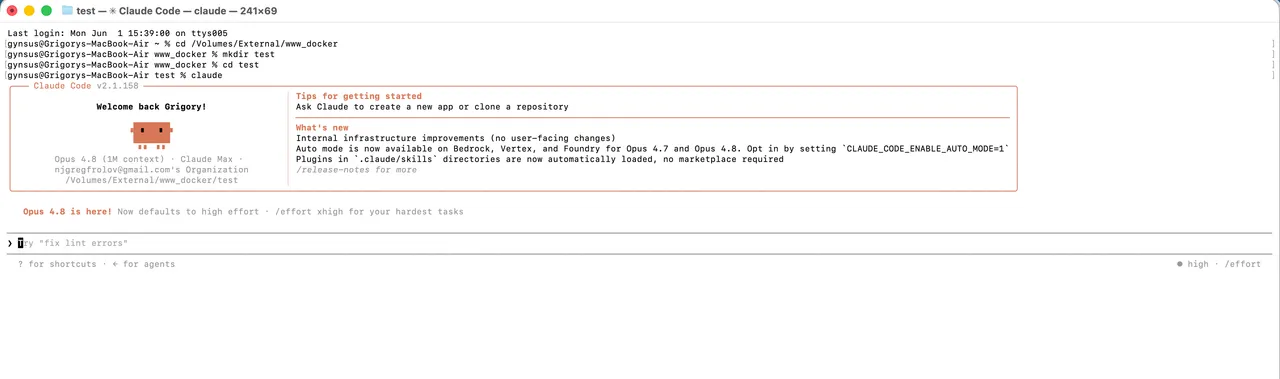
Open a terminal in the project folder you want to work on and start it:
claudeOn first launch, Claude Code walks you through login in your browser. You have two main paths:
- Claude subscription (Pro/Max/Team/Enterprise). Sign in with your Claude.ai account. Usage comes out of your plan — predictable monthly cost, the usual choice for individuals.
- Console / API account. Sign in with an Anthropic Console account and pay per token used. Better if your usage is spiky or you’re already on the API.
Enterprise teams can also route Claude Code through Amazon Bedrock, Google Vertex AI, or Microsoft Foundry instead of Anthropic’s API directly.
Once you’re in, try something small: ask it to explain the project, or fix a tiny bug. It will propose actions and ask permission before editing files or running commands.
Verify it works
Two quick checks. First, confirm the binary responds:
claude --versionThen, for a fuller health check of your installation, PATH, and auto-update status:
claude doctorIf claude --version prints a version number, you’re done installing. If it says command not found, jump to the troubleshooting table below — it’s almost always a PATH issue.
Updating Claude Code
If you used the native installer, updates happen automatically in the background; the new version takes effect next time you start Claude Code. To force an update right now:
claude updatePackage-manager installs update through their own tools: brew upgrade claude-code, winget upgrade Anthropic.ClaudeCode, or npm install -g @anthropic-ai/claude-code@latest (avoid npm update -g — it can keep you on an old release due to semver ranges).
Common install errors and fixes
| Error | Likely cause | Fix |
|---|---|---|
claude: command not found | ~/.local/bin not on PATH | Open a new terminal; if it persists, add export PATH="$HOME/.local/bin:$PATH" to ~/.zshrc or ~/.bashrc |
npm EACCES permission errors | npm’s global dir owned by root | Don’t use sudo. Switch to the native installer, or point npm’s prefix to a user dir |
'irm' is not recognized (Windows) | Running the PowerShell command in CMD | Use the CMD install command, or open PowerShell |
The token '&&' is not valid (Windows) | Running the CMD command in PowerShell | Use irm https://claude.ai/install.ps1 | iex |
| npm install fails on old Node | Node.js below v18 | Update Node to 18+ — or skip Node entirely with the native installer |
| Wrong/old version still runs | Two installs (e.g., npm + native) conflicting | Run claude doctor, then remove the duplicate install |
| Native installer fails on Alpine | Missing musl libraries | apk add libgcc libstdc++ ripgrep, then set USE_BUILTIN_RIPGREP=0 in settings |
The pattern behind most of these: the native installer avoids the whole Node/npm/permissions class of problems. When in doubt, uninstall the npm version and use the curl/PowerShell installer.
Uninstalling Claude Code
Match the uninstall to how you installed:
# Native install (macOS/Linux/WSL)
rm -f ~/.local/bin/claude
rm -rf ~/.local/share/claude

# npm
npm uninstall -g @anthropic-ai/claude-code

# Homebrew
brew uninstall --cask claude-code
On Windows, remove %USERPROFILE%\.local\bin\claude.exe and the .local\share\claude folder, or run winget uninstall Anthropic.ClaudeCode. Your settings and session history live separately in ~/.claude and ~/.claude.json — delete those too only if you want a complete reset, since it wipes your configuration and history.
What you get, and what’s next
Once installed, you have an agent that can read and refactor a codebase, write tests, fix bugs from a description, run your build, and even handle git — all from the terminal, with you approving each step. A few directions from here:
- Deciding between tools? Claude Code is terminal-first; Cursor wraps similar AI into a full code editor. Our Claude Code vs Cursor comparison breaks down which fits your workflow.
- Newer to AI coding overall? Start with our roundup of the best AI for coding to see the whole field.
- Want the broader toolkit? Browse everything we’ve tested in the tools hub.
Start small on a low-stakes project, watch what it proposes before approving, and you’ll calibrate quickly on what it’s good at.
Frequently asked questions
Do I need Node.js to install Claude Code? No — the native installer (the curl or PowerShell one-liner) has no Node.js requirement. Node.js 18+ is only needed if you choose the optional npm install method, and even then npm just delivers the same native binary.
Is Claude Code free to use? The software is free to install, but it requires a paid Claude plan: Pro, Max, Team, Enterprise, or a Console (API) account with credits. The free Claude.ai plan does not include Claude Code access.
How do I install Claude Code on Windows?
Run irm https://claude.ai/install.ps1 | iex in PowerShell, or winget install Anthropic.ClaudeCode. It runs natively on Windows 10 1809+ — no WSL required, though WSL 2 is supported if you prefer a Linux environment or want sandboxing.
How do I check that Claude Code installed correctly?
Run claude --version in a new terminal window. If it prints a version number, you’re set. For a deeper check of your install, PATH, and update status, run claude doctor.
How do I update Claude Code?
Native installs auto-update in the background. To update immediately, run claude update. Homebrew users run brew upgrade claude-code, WinGet users run winget upgrade Anthropic.ClaudeCode, and npm users run npm install -g @anthropic-ai/claude-code@latest.
Why does my terminal say “claude: command not found” after installing?
The installer puts the binary in ~/.local/bin, which may not be on your PATH. Open a new terminal first; if that doesn’t fix it, add export PATH="$HOME/.local/bin:$PATH" to your shell profile (~/.zshrc or ~/.bashrc) and restart the terminal.
Can I use Claude Code with an API key instead of a subscription?
Yes. When you run claude for the first time, you can authenticate with a Claude.ai subscription or a Console (API) account billed by usage. Claude Code also works with Amazon Bedrock, Google Vertex AI, and Microsoft Foundry for enterprise setups.
How do I uninstall Claude Code?
For the native install, delete ~/.local/bin/claude and ~/.local/share/claude. For npm, run npm uninstall -g @anthropic-ai/claude-code; for Homebrew, brew uninstall --cask claude-code. Settings live in ~/.claude and ~/.claude.json if you want a full cleanup.
Want practical setup guides like this as new tools drop? Subscribe to our weekly AI digest. Next steps: see how Claude Code compares to Cursor or browse the full tools hub.
Frequently asked questions
Do I need Node.js to install Claude Code?
No — the native installer (the curl or PowerShell one-liner) has no Node.js requirement. Node.js 18+ is only needed if you choose the optional npm install method, and even then npm just delivers the same native binary.
Is Claude Code free to use?
The software is free to install, but it requires a paid Claude plan: Pro, Max, Team, Enterprise, or a Console (API) account with credits. The free Claude.ai plan does not include Claude Code access.
How do I install Claude Code on Windows?
Run `irm https://claude.ai/install.ps1 | iex` in PowerShell, or `winget install Anthropic.ClaudeCode`. It runs natively on Windows 10 1809+ — no WSL required, though WSL 2 is supported if you prefer a Linux environment or want sandboxing.
How do I check that Claude Code installed correctly?
Run `claude --version` in a new terminal window. If it prints a version number, you're set. For a deeper check of your install, PATH, and update status, run `claude doctor`.
How do I update Claude Code?
Native installs auto-update in the background. To update immediately, run `claude update`. Homebrew users run `brew upgrade claude-code`, WinGet users run `winget upgrade Anthropic.ClaudeCode`, and npm users run `npm install -g @anthropic-ai/claude-code@latest`.
Why does my terminal say 'claude: command not found' after installing?
The installer puts the binary in `~/.local/bin`, which may not be on your PATH. Open a new terminal first; if that doesn't fix it, add `export PATH="$HOME/.local/bin:$PATH"` to your shell profile (`~/.zshrc` or `~/.bashrc`) and restart the terminal.
Can I use Claude Code with an API key instead of a subscription?
Yes. When you run `claude` for the first time, you can authenticate with a Claude.ai subscription or a Console (API) account billed by usage. Claude Code also works with Amazon Bedrock, Google Vertex AI, and Microsoft Foundry for enterprise setups.
How do I uninstall Claude Code?
For the native install, delete `~/.local/bin/claude` and `~/.local/share/claude`. For npm, run `npm uninstall -g @anthropic-ai/claude-code`; for Homebrew, `brew uninstall --cask claude-code`. Settings live in `~/.claude` and `~/.claude.json` if you want a full cleanup.
Keep reading



Get good at AI — one practical email a week.
Tools, use cases, and shortcuts you can actually apply. No hype.