Napkin AI: What It Is and How to Use It (2026 Review)
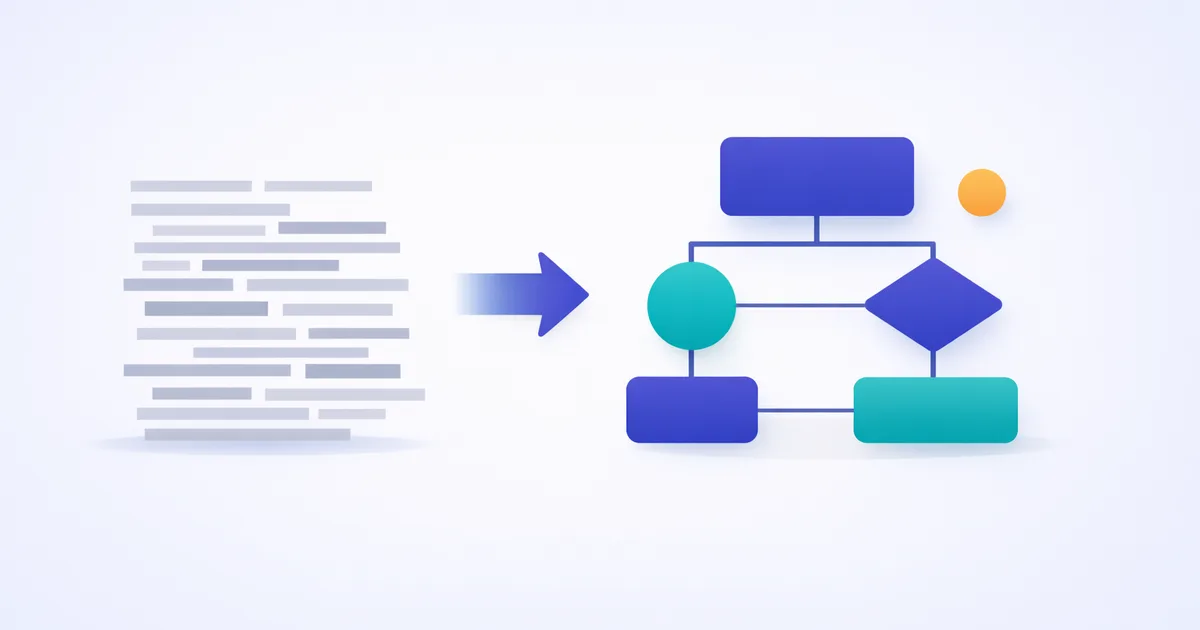
The fastest way for non-designers to turn text into clean, editable visuals — blog graphics, decks, and docs. Best for conceptual diagrams, not data charting or pixel-perfect brand art. Generous free tier; start there.
Pricing
| Plan | Price | Who it's for |
|---|---|---|
| Free (Starter) | $0 | Individuals, casual use, trying it out |
| Professional | paid monthly | Frequent creators, advanced styling |
| Team / Enterprise | custom | Teams needing collaboration & controls |
Most “AI design” tools generate images. Napkin AI does something more practical for business and content work: it visualizes meaning. Give it a paragraph and it produces the diagram you’d have drawn on a napkin — hence the name. We tested it on real blog and deck content; here’s what it is, how to use it, what it costs, and where it falls short.
What is Napkin AI?
Napkin AI is a text-to-visual tool. Instead of prompting for an illustration, you give it your actual content — a process, a comparison, a timeline, a list — and it suggests diagrams that represent it: flowcharts, process steps, mind maps, comparison layouts, and more. Every element is editable, so you adjust colors, icons, text, and layout to fit your brand. It removes the gap between “I have a thought written down” and “I have a clean visual of it,” without needing PowerPoint shapes or a design tool.
How to use Napkin AI
Getting from text to a finished visual takes about a minute:
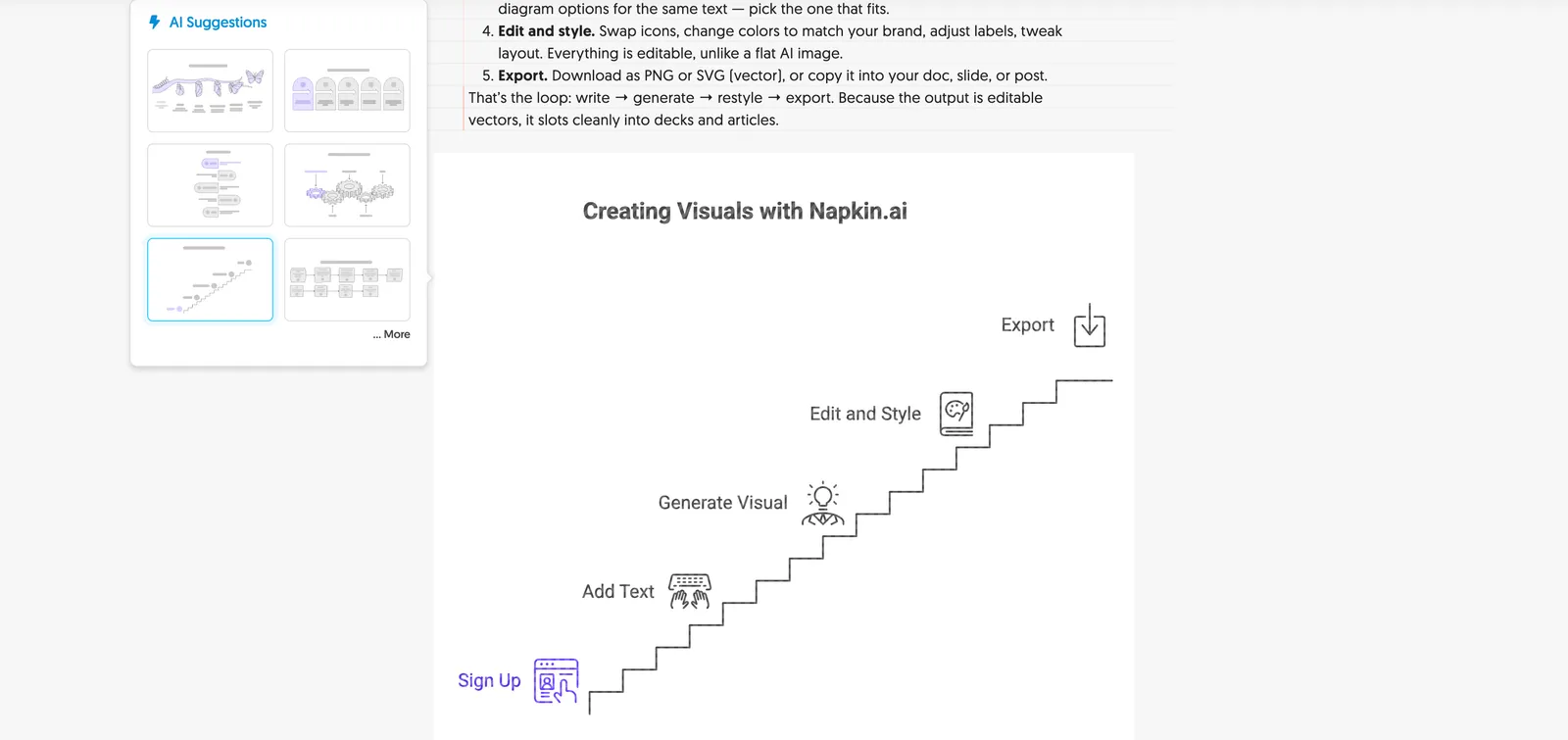
- Sign up and create a page. Go to napkin.ai and start a new document — browser-based, no install.
- Add your text. Paste existing content or write directly. It works best when the text describes something structured: steps, parts of a concept, a comparison, or a sequence.
- Generate a visual. Highlight the text and trigger generation. Napkin offers several diagram options for the same text — pick the one that fits.
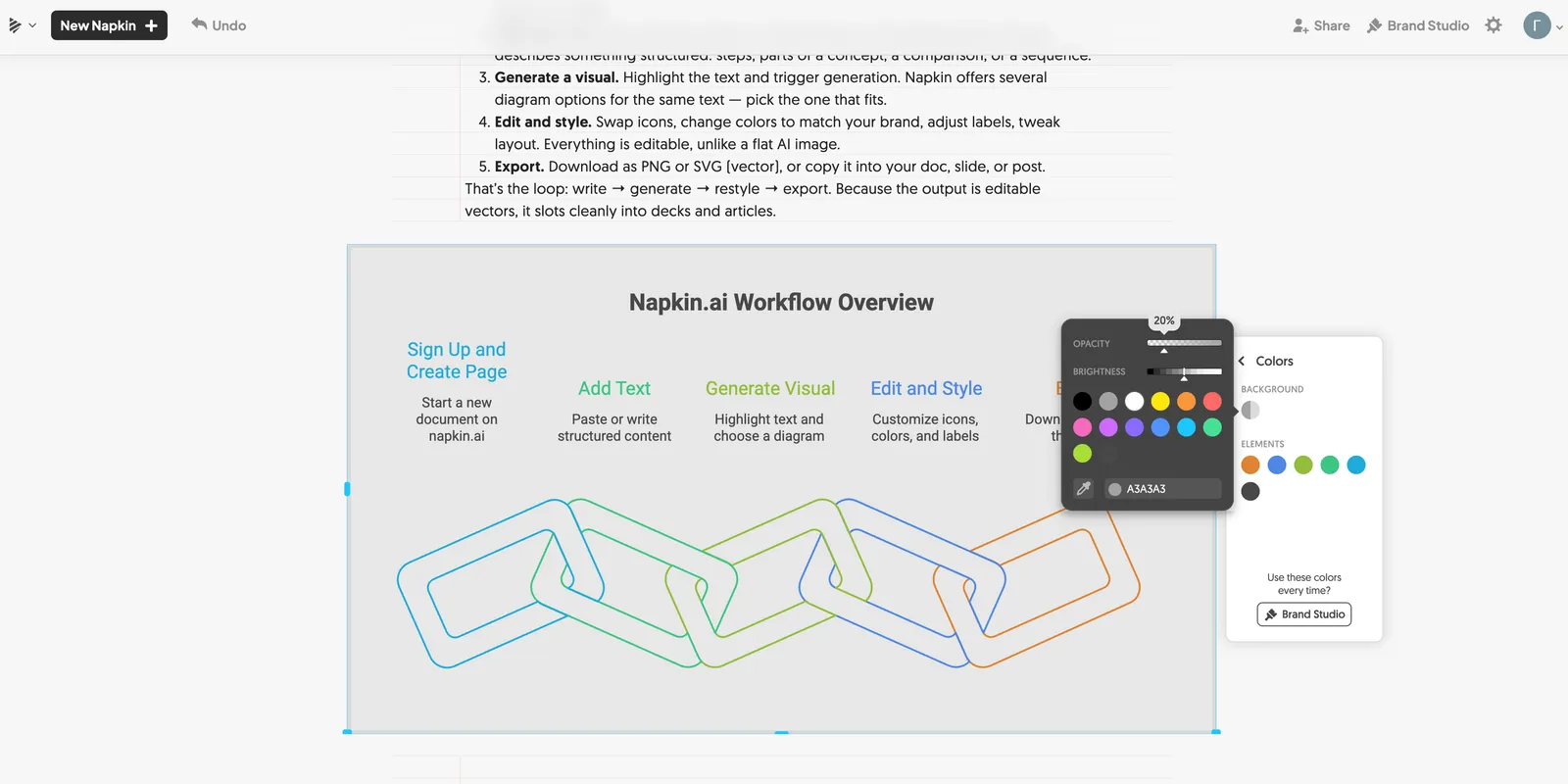
- Edit and style. Swap icons, change colors to match your brand, adjust labels, tweak layout. Everything is editable, unlike a flat AI image.
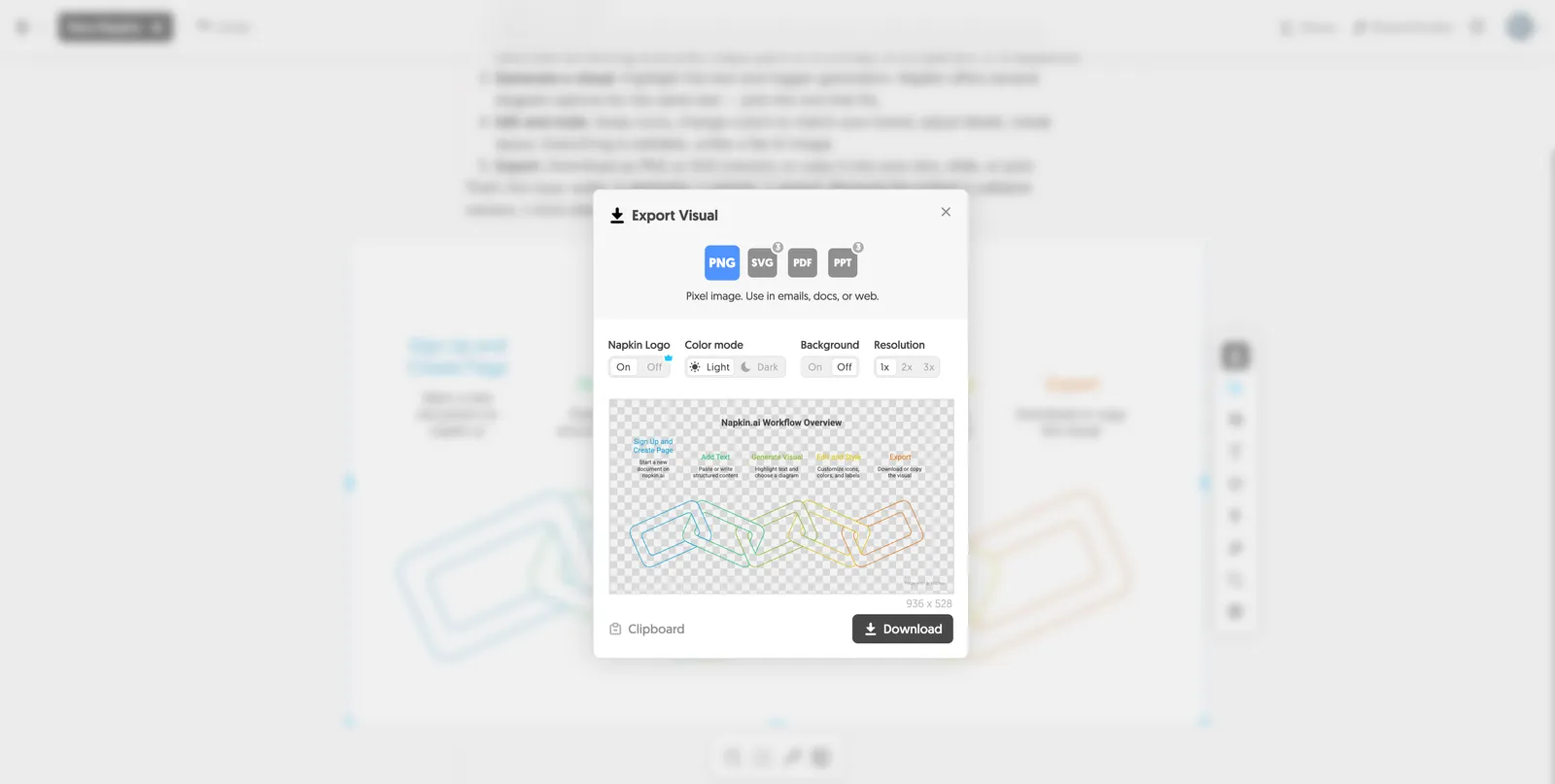
- Export. Download as PNG or SVG (vector), or copy it into your doc, slide, or post.
That’s the loop: write → generate → restyle → export. Because the output is editable vectors, it slots cleanly into decks and articles.
Key features
- Text-to-diagram generation with multiple style options per input.
- Fully editable visuals (icons, colors, fonts, layout) — not static images.
- Visual variety: flowcharts, process diagrams, mind maps, comparisons, timelines.
- Brand styling to keep visuals consistent.
- SVG/PNG export for crisp use anywhere; browser-based, collaborative pages.
Best use cases
- Blog and article illustrations — turn a section into a diagram readers (and AI Overviews) grasp instantly.
- Presentations — generate slide visuals without fighting PowerPoint shapes.
- Documentation & explainers — visualize processes and architectures.
- Social posts — quick, branded explainer graphics.
Tips for getting better results
Napkin’s output is only as clear as the text you feed it. A few habits that noticeably improved our results:
- Write structured text. Sentences that describe steps, parts, or a comparison give Napkin something to map. Vague prose produces vague visuals.
- Generate several, then pick. The second or third option is often cleaner than the first.
- Set your brand colors once so every visual stays consistent without re-editing.
- Keep one idea per visual — cramming a whole article into one diagram backfires.
- Export as SVG when you’ll resize it — vectors stay sharp on slides and retina screens.
Who is Napkin AI for?
Napkin is a strong fit for content creators, marketers, founders, consultants, and anyone who makes decks or docs but isn’t a designer. If you regularly explain processes, frameworks, or comparisons, it turns minutes of fiddling with shapes into seconds. It’s less suited to data-heavy charting (use a spreadsheet or BI tool) or pixel-perfect brand artwork (use a full design tool). For its core job — turning ideas into clean, editable visuals fast — it’s one of the most useful AI tools we’ve tested this year.
Napkin AI alternatives
- Gamma — AI for full presentations and docs (not just diagrams).
- Canva — broader design suite with AI features.
- Mermaid / Excalidraw — for developers who want code-based or hand-drawn diagrams.
See our roundup of the best AI for coding and other tool reviews for more, and learn the basics in our glossary.
Is Napkin AI worth it?
For most people who make content or decks, yes — and the free tier means there’s almost no reason not to try it. The honest test is your own workflow: if you frequently find yourself wanting a quick diagram and reaching for clunky shape tools, Napkin will save you real time on day one. If your visuals are mostly data charts or fully bespoke brand graphics, it’s the wrong tool and you’ll feel the ceiling fast. We landed on a simple rule after testing: use Napkin for explaining (processes, comparisons, frameworks), and keep a dedicated design or charting tool for everything else. Treated that way, it earns a permanent spot in the stack.
Pros & cons
Pros
- Genuinely fast: text to clean visual in under a minute
- Output is editable vectors, not flat images
- Generous free tier; low barrier to start
- Great for non-designers who need professional-looking diagrams
Cons
- Best for conceptual diagrams — not a full design or charting tool
- Style options, while good, can feel similar across visuals
- Complex, highly custom diagrams still need a dedicated tool
Frequently asked questions
What is Napkin AI?
A tool that turns plain text into editable diagrams and visuals — flowcharts, process diagrams, mind maps, and more. You provide content and it generates graphics you can restyle and export.
Is Napkin AI free?
Yes — a free tier covers most casual and individual use. Paid plans add advanced styling, higher limits, and team features.
How much does Napkin AI cost?
There's a free Starter plan, a paid Professional plan billed monthly, and custom Team/Enterprise pricing. Most individuals can stay on the free tier.
How does Napkin AI work?
You add text describing a process, comparison, or idea; Napkin generates matching diagram options. You then edit colors, icons, and layout and export as PNG or SVG.
What can you make with Napkin AI?
Flowcharts, process diagrams, mind maps, comparison layouts, timelines, and explainer graphics — ideal for blog posts, presentations, and documentation.
Is Napkin AI good for presentations?
Yes — it's excellent for generating editable slide visuals quickly. For building the entire deck, a tool like Gamma may suit better.
Can I export from Napkin AI?
Yes — export as PNG or SVG (vector), or copy visuals directly into documents, slides, and web pages.
Keep reading


Get good at AI — one practical email a week.
Tools, use cases, and shortcuts you can actually apply. No hype.